NFC Cards for Real Estate Agents

Share properties with buyers using reusable NFC cards. Buyers tap to view listings, contact their agent, and revisit them after a showing.

JS
John. Smith
Best Brokers
Featured home
Call
Text
Properties Shared Text • Email • NFC Card
123 Maple Street
Naperville, IL 60540
$725,000
4 bd • 3 ba • 2,650 sqft
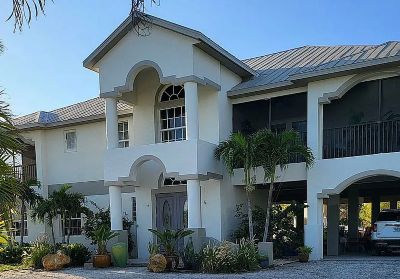
456 Oak Drive
Naperville, IL 60540
$649,000
4 bd • 2.5 ba • 2,300 sqft
789 Pine Lane
Naperville, IL 60540
$599,000
3 bd • 2 ba • 1,900 sqft
No Setup Fee Cancel Anytime
Tap to View Properties NFC card
For Real Estate Agents
Tap sample card below
Add homes for your buyers
Start your 10-day free trial
Use the full software free for 10 days — no card order needed.
🔒

Your 10-Day Trial Has Ended

Subscribe to continue using your account.

Nothing has been deleted — your buyer pages and listings are saved and come right back the moment you subscribe.

Sign out
Welcome to ForSaleNFC
Complete your profile to order your cards
Your Profile
Required: name, phone, email, brokerage. License & photo optional.
Order Cards
Order your first batch of NFC cards.
My Buyer-Cards
Tap a buyer to edit, or + Add Buyer to create a new one
Need help? How It Works
Loading…
FS-0000
Not sure? How It Works
Buyer Info
Properties
0 / 6
First time? Get the NFC Tools free app: App Store · Google Play
Send link to buyer
Opens your own Messages or Mail with the link ready to send — no card needed. Save the buyer first.
Orders
Your card order history + place a new order
Order New Cards
Order blank printed NFC cards, shipped to you. Assign each one to a buyer in the app whenever you're ready — write the buyer link to any card anytime.
Total$30
Rate: $30 per 10
Order History
Loading…
--

Your Name

Brokerage · License

Live on all your buyer cards
Agent Info
Brokerage Info
Shipping Address
Where we ship your NFC cards
Card Info
What buyers see when they tap your card
Voice Introduction
A short spoken hello on your buyers' cards — recorded once, reused on every card
Admin Panel ADMIN
Platform-wide settings and order fulfillment
📊 Metrics
Live funnel across the whole platform.
Loading…
Pricing & Numbering
Physical NFC card giveaway — separate from Free Trial Length above, which controls free software days.
How long each photo is held in a buyer's Photo Tour. 4 seconds × 10 photos is about 45 seconds of tour. Applies to every agent.
How many free cards each new agent is granted at signup (only applies when the offer is On).
Next order starts at: FS-0101
🖥️ Landing Page Demo
The sample phone shown on the public homepage. Edit the agent and the 3 homes to match the area you're marketing to (e.g. Florida). This only changes the marketing demo — it never touches real agent or buyer data.
📸 To add a photo: paste an image into the box, or tap 📁 Choose File to upload one from your phone. Tap 🗑 Remove to clear it. When you're done, tap 💾 Save Landing Demo at the bottom.
None
None
None
None
Cards Used by Brokerage
Total cards used per brokerage, across all of that broker's agents. Highest usage first.
Loading…
Agents
All signed-up agents. Click a row to edit pricing or trial cards.
Loading…
All Orders (Fulfillment View)
Loading…
Chatbot Conversations
What agents asked the website chatbot, newest first.
Loading…
📣 Prospect Cards
Cards branded with an agent's name, phone, and brokerage — their own listings if you paste them, the regional demo homes if you don't. Prospect cards carry the pitch and the free-trial button. Buyer cards are the same page with all of that stripped out, so the agent can hand one to a real buyer. Build the prospect card, then duplicate it for the buyers. Fully separate from ?t= buyer cards and allocate_one_card.
Leave blank to show the generic regional demo homes. Or paste the agent's real listings here — same as a buyer card — and the demo becomes their product, with their homes and working Call / Text buttons.
Loading…
Default house photos are already set, so you can ignore this. Change a region's 3 photos only if you want — every card in that region updates automatically.
Landing page and demo-card photos are stored in the database as base64 and are fetched on every cold open — no CDN in front of them. Oversized images here directly slow down the first thing a prospect sees. This re-compresses everything already saved to 900px / JPEG 80%.

Pricing

Simple, honest pricing. Start free — no card order needed.

$29.95 /month
10-day free trial — full software, no card order needed
$29.95 / month per agent seat
Unlimited digital cards — share by text or email, and by NFC card when you're a paid subscriber
10 physical NFC cards included with your first paid month
Additional cards — $30 per pack of 10

How ForSaleNFC Works

Give buyers a simple way to revisit properties and contact you after a showing.

Billing is month-to-month. Cancel anytime from Profile → Manage Subscription, or the Billing tab.

What this is

ForSaleNFC helps you share multiple properties with buyers in a professional way.

After a phone call, inquiry, or showing, simply add the properties you want the buyer to see. Then send their personalized property page by text, email, or hand them NFC cards of the homes you just showed them in person.

Buyers can revisit the properties anytime, contact you with one tap, and you can continue adding new listings as their search evolves.

No app. No login. No setup for the buyer.

Most buyers can be set up in just a few minutes.

The first card for a specific property takes about 5 minutes to set up. Additional cards for that same property take about 10 seconds each.

Step-by-step

1
Complete your profile
Add your name, phone, email, and brokerage. Pick a headshot, your brokerage logo, or just a name display. Headshot, brokerage, and license are all optional.
This is what buyers see when they tap your card.
2
Record your voice introduction (optional)
Record it on your iPhone, in Safari. That's the one combination that works everywhere. Apple only allows microphone access in Safari, so Chrome, Firefox, and Edge on iPhone show a Copy link button instead of Record — copy it, open Safari, paste, and record there. A computer will record, but Chrome and Firefox on a desktop save a format iPhones can't play, so your buyers on iPhone would see no button at all.
In Profile → Voice Introduction, record up to 15 seconds introducing yourself — who you are, the areas you cover, and how to reach you. Play it back, then save. Buyers see a green Voice Message from [your name] button on their card and hear you in your own voice.
  • Record it once. It's reused on every buyer card automatically.
  • Want a personalized introduction for a particular buyer? Open that buyer and record there — it replaces the standard introduction on their card only.
  • Delete it anytime. The button simply disappears; nothing else about the card changes.
If you do record on a computer by mistake, you'll get an orange warning in Profile telling you to re-record. Playing and deleting an existing introduction work in any browser.
Optional either way. Skip it and your cards work exactly as before.
3
Start your free trial
Your account works right away — no card order needed to begin. During your 10-day free trial you can add buyers and share their property pages instantly by text or email. Physical NFC cards ship with your first paid month, and you can order a batch anytime from your dashboard. Each time you add a buyer the next card number is assigned automatically — so when your cards arrive, they are ready to be programmed to hand out.
Nothing to buy up front. Try the full software free for 10 days.
4
Add a buyer
Tap + Add Buyer. A new card number is generated automatically — create as many buyer pages as you like. Then:
  • Enter the buyer's name (phone optional)
  • Add the showing date and time, and any notes you want to remember
  • Add the properties you showed them (next step)
  • Tap Save
  • Tap Preview Buyer View and verify each property opens correctly before giving the card to the buyer
Computer Tip: You can create buyers on your computer. When you're ready to write the NFC card, open the buyer on your phone and tap Copy Card Link.
A quick preview now can prevent problems later. Always verify the buyer page and listings before handing over the card.
5
Add the properties
Paste up to 6 public listing links — the same ones you'd send a client by email or text. Use the listing page URL, not an image link. Adding a photo is optional, and only some of the properties need one.
Work in two tabs. Keep ForSaleNFC open in one tab and the listing site in a second tab. Switch back and forth to copy each listing link — that way you never navigate away from your half-finished buyer and lose your place.

iPhone (Safari): touch and hold a link → Open in New Tab. Switch tabs with the button at the bottom right.
Android (Chrome): touch and hold a link → Open in new tab. Switch tabs with the numbered square at the top right.
Tip: For the listing link, press and hold the property on the listing site and tap Copy Link (not Copy Image). If what you copied points at an image file, you've copied the photo instead of the listing page.

Copy Link is what you want here — it's just the address of the listing page. Do not use Copy Image unless you have permission to use that photo.
Property photo (optional): Use only an authorized photo. Tick the confirmation box under the photo before saving.

Photos from public listings may still be copyrighted. Only upload photos you took, purchased or licensed, or that your brokerage has authorized you to use.

Listing links are different — any public listing link is fine.

Properties without a photo still work fine: the buyer taps the listing link and sees the home on the listing site. A card with photos on two of five homes is perfectly normal.
6
Share with the Buyer
Once you've added the buyer and properties, their personalized property page is ready. You can share it instantly by:
  • Tapping Text Buyer to send the property page by text message
  • Tapping Email Buyer to send the property page by email
  • Programming an NFC card and handing it to the buyer in person
Your buyer can pass it on too — their property page has a Share these homes button that sends the same link to a partner or family member. Forwarded views show up in that buyer's activity, so you can see when a second person is looking.
When you want to hand a buyer a physical card, open the buyer record and tap Copy Card Link, then in NFC Tools:
  1. Press Write
  2. Press Add a record
  3. Press URL
  4. Paste the copied link
  5. Tap the arrow in the top-right to save the record
  6. Hold the card next to your phone and press Write Bytes
Test-tap the card before handing it to the buyer.
The buyer page and properties are stored in ForSaleNFC. You can add, remove, or update listings anytime. The buyer will always see the latest version without needing a new text, email, or card.
7
Give the card to the buyer
Hand them the card at the end of the showing. When they tap it with their phone, they see:
  • Your name and photo
  • A one-tap Call button and a Text button that opens the buyer's own Messages app addressed to you
  • A green Voice Message from [your name] button, if you've recorded a voice introduction
  • The homes you showed them
When a buyer sends a message, it comes straight to you — they never leave the card.
8
Update listings anytime
Open the buyer, edit or add listings, and save. Changes go live instantly — the buyer's next tap shows the updated homes. No need to re-write the card.
9
Archive when done
When the buyer's search is finished, archive the buyer.
Each card is tied to one buyer and isn't reused — this keeps every buyer's information private.

The whole thing in 9 steps

1
Complete profile
2
Record introduction (optional)
3
Start free trial
4
Add buyer
5
Add properties
6
Share with buyer
7
Hand to buyer
8
Update listings
9
Archive when done

When to use it

  • After private showings
  • With serious buyers you want to stay in front of
  • For follow-up after multi-property tours

How buyers reached you

There are three ways a buyer can open a property page you share, plus a Directions button on every property. ForSaleNFC quietly records which one they used — so you can see what's actually working. It's all under each buyer's Activity.

📇 Card tap
The buyer taps the physical NFC card you handed them and their phone opens the buyer page — no app, no typing. Views that arrive this way are labeled Card tap. This is your in-person channel: showings, open houses, walk-ins.
💬 Text
On a saved buyer, tap Text Buyer. Your phone's Messages app opens with a friendly note and the buyer's link already filled in — you just press send. It goes from your own number, so it reads like a personal text, not a mass blast. Views from that link are labeled Text.
✉️ Email
Same idea with Email Buyer — your Mail app opens pre-filled with a short message and the buyer's link. Views that come from it are labeled Email. Handy for buyers who prefer email or when you want the properties in their inbox.
🧭 Directions
Every property page shows the buyer a green Directions button. Tapping it opens their maps app and routes them straight to that home. Each time a buyer asks for directions it appears in their Activity as “Buyer requested directions” with the time — one of the strongest signals you'll get that they're planning to go see the place.
📊 Seeing it all — the Activity panel
At the top of My Buyer-Cards you'll see a quick Your buyer activity summary — total property views, how many buyers are active, directions requests, and how buyers reached you (Card tap / Text / Email) across everyone. For the detail, open any buyer and tap Activity: you'll see which properties they've opened, how many times, which way they got there, and any directions requests. A property viewed several times — or one they asked directions to — is your hottest lead. Start your follow-up there.

Common questions

How do I write a card?
Open the buyer, tap Copy Card Link, and follow the short guide — it walks you through writing it with a free NFC app. Takes about 15 seconds, and only once per card.
Do I need a special app to write cards?
Yes — a free one called NFC Tools (or NXP TagWriter). The guide links you straight to it. It's not a conventional app — no account, no login, no setup. It's a small free utility you open just to write the card, then you're done. (On Android it can be even quicker; on iPhone you use NFC Tools.)
Can I change the listings later?
Yes. Open the buyer, edit or add listings, and save. The card itself never needs re-writing — it always shows the latest.
What if the card doesn't open?
Tap again — hold the card to the back of the phone, then take it away.
Why can't I record on my iPhone in Chrome?
Apple only allows microphone access in Safari on iPhone — it's a restriction on the phone, not something we can work around. Chrome, Firefox, Edge, and links opened inside Facebook or Instagram all hit the same wall. When that happens we show a Copy link button instead of Record: copy the link, open Safari yourself, tap the address bar, paste, and record there. (A web page can't open Safari for you, which is why it's a copy-and-paste rather than a button that jumps across.) Playing and deleting an introduction you've already recorded work in any browser.
I recorded an introduction but my buyer says there's no Play button.
You most likely recorded it on a computer in Chrome or Firefox, which save audio in a format iPhones can't play. Rather than show your buyer a button that fails, the card leaves it out entirely. Check Profile → Voice Introduction — if that's the problem there's an orange warning there telling you to re-record. Do it in Safari on your iPhone and it'll work on every phone.
Do buyers need an app?
No. The card opens in the phone's browser. Buyers just tap.

Need a hand?

info@forsalenfc.com
DB connecting…
Are you still there?
You'll be signed out in 120 seconds for security.
📲 Write this card
The card link is copied. Now write it onto the physical card with a free NFC app — takes about 15 seconds.
  1. 1
    Open your NFC writer app (NFC Tools or NXP TagWriter — free).
  2. 2
    Tap Write, then Add a record.
  3. 3
    Choose URL / Link.
  4. 4
    Paste the copied link, then tap OK (the ✓ arrow at the top right).
  5. 5
    Tap Write, then hold a blank card to the top of your phone until it confirms.
  6. 6
    Tap the card on your phone to test it before handing it to your buyer.
Voice introduction
💬 Message your agent
Send a message — they'll get it right away and can call or text you back.